
Overview
i-Tracker regularly measures how fast your internet connection really is, and keeps the results. That way you do not just see a single value, but whether performance drops at certain times of day or towards a certain destination.
Unlike a speed test in the browser, i-Tracker measures against test servers of your choice, for example at your data center, in a branch office or at a public provider. It uses the proven measuring tool iperf3 for this. In addition, it shows on a map which stations your data passes on the way to the destination.
i-Tracker runs on one of your own computers and is used in the browser. It is free and open source.
Requirements
- A computer running Windows that is always on, for example a small server or a VM. With Docker, Linux works too, see Installation.
- iperf3 version 3.17 or later. i-Tracker does not include it but can install it at the push of a button (see Setup).
- At least one test server running iperf3 as a server (
iperf3 -s). This can be a computer of your own, or you pick a public server from the list in i-Tracker. - Network connections:
- from the i-Tracker computer to the test server on its iperf3 port (usually 5201)
- for route tracing: traceroute packets to the internet (sometimes blocked in company networks)
- for the map: once a day a connection to db-ip.com to update the location data
- from your workstation to the interface on port 8000
Installation
Put the program file into a folder of its own, for example C:\Program Files\i-Tracker. i-Tracker creates its settings and measurement data in this folder.
The first time, start i-Tracker by hand. This creates the settings file and the initial password.
Windows
cd "C:\Program Files\i-Tracker"
.\i-tracker.exe
Then open the interface in the browser at http://localhost:8000, from other computers at http://<computer name>:8000. Allow port 8000 in the firewall for this.
Run as a service
To keep i-Tracker measuring permanently, also after a restart, set it up as a Windows service. This needs administrator rights.
Windows
.\i-tracker.exe service install
.\i-tracker.exe service start
With Docker
For Linux, the source code contains a Docker template (Dockerfile, docker-compose.yml). The image already contains iperf3 and traceroute. All data lives in the volume /data. This option is still new and less tested than the installation on Windows.
Docker
docker compose up -dSetup
Log in: On the first start, i-Tracker creates the user admin with a random initial password. It is shown once in the console window. If i-Tracker already runs as a service, you find it in the file initial-admin-password.txt in the program folder. After the first login, choose your own password (at least 10 characters). Delete the file afterwards.
Install iperf3: If iperf3 is missing, the status dot at the top right shows a hint. As an administrator you can have it installed there with one click. On Windows this uses winget. A restart of the service may be needed afterwards.
Add the first test server: Under Servers you set what to measure against, see Test servers.
Test servers
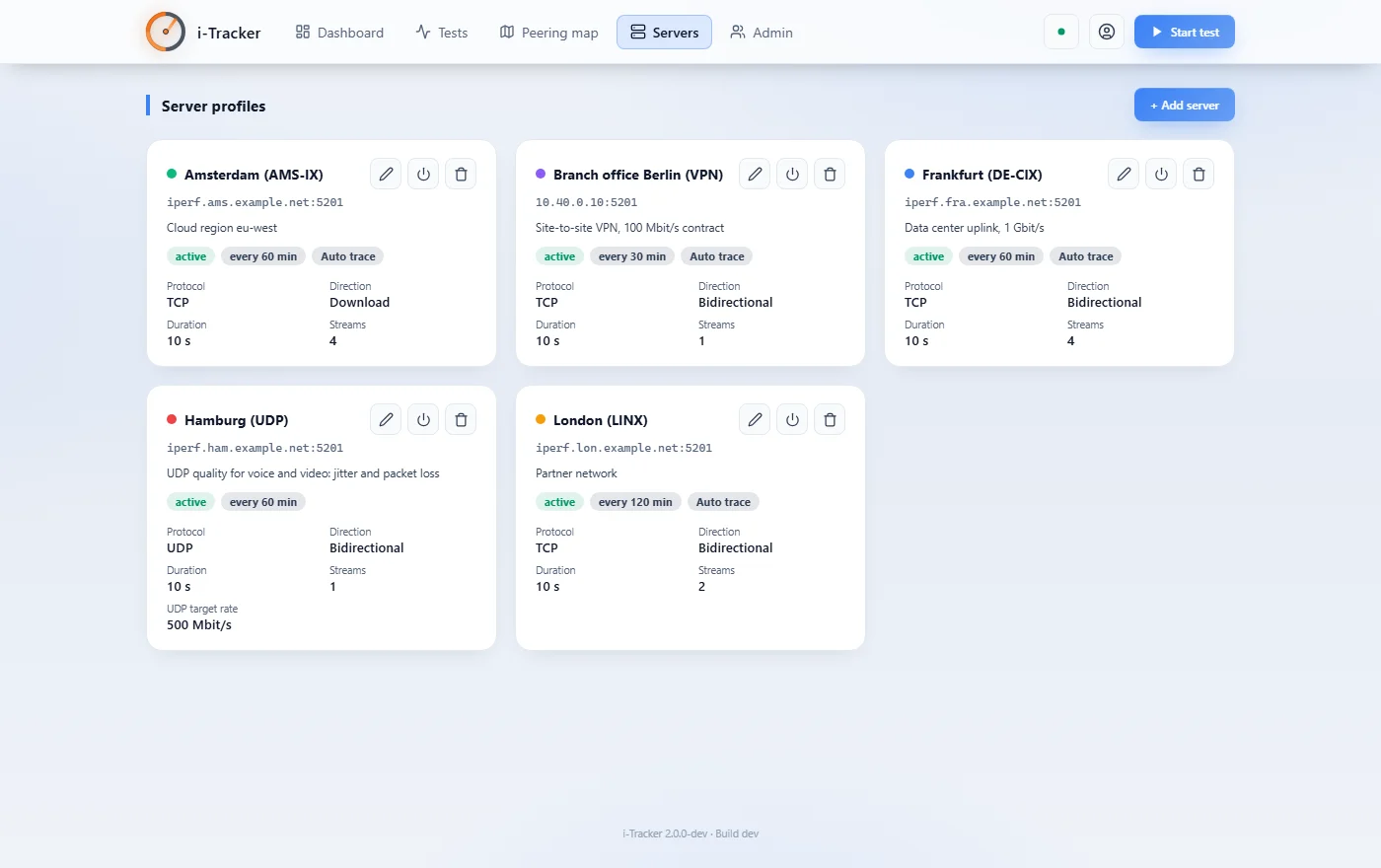
A test server is a computer on which iperf3 runs as the counterpart. Under Servers you create a profile per destination:
- Name and address (name or IP address) and the port, usually 5201
- Test defaults: protocol, direction, duration and number of parallel connections for the regular measurements
- Test regularly: every how many minutes to measure automatically (default: 30)
- Auto trace: after each measurement, also record the route to the destination
- Server active: switches the profile off temporarily without deleting it
Instead of entering an address yourself, you can take a public server from the built-in list. Public servers are often busy. Do not measure there too often, and use few parallel connections.
Only one measurement runs at a time so measurements do not distort each other. Others wait until it is their turn. With many servers and short intervals this can cause delays.
Measurements
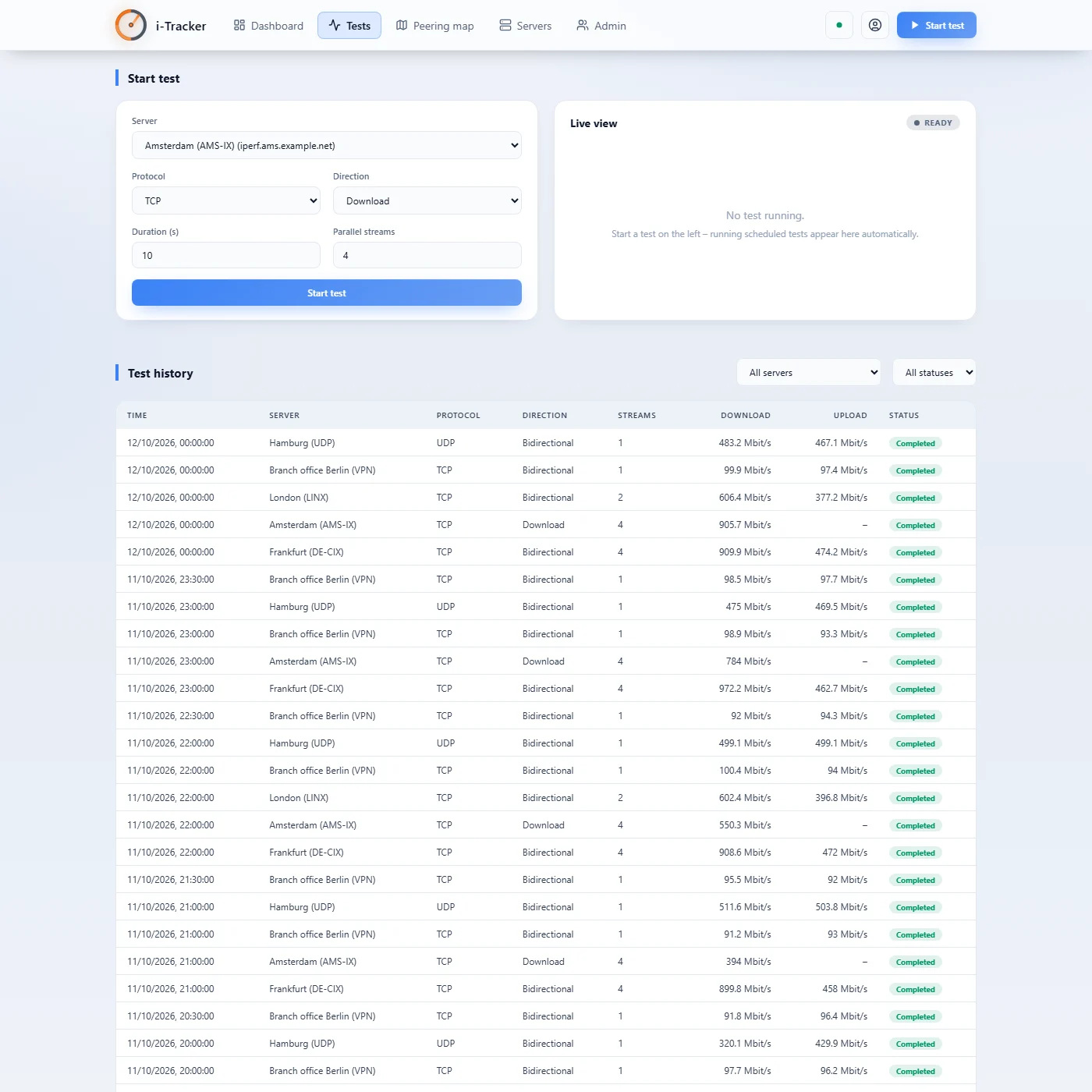
Under Tests you start a measurement by hand and see all previous results.
- Protocol: TCP measures throughput as file transfers experience it. UDP also measures fluctuations (jitter) and lost packets, which matters for telephony and video.
- Direction: download (from the server to you), upload (from you to the server) or both at once.
- Duration: 1 to 300 seconds. 10 to 30 seconds are usually enough.
- Parallel connections: several connections at once make better use of fast lines.
- UDP bandwidth: how much is sent with UDP. Without a value only 1 Mbit/s.
During a measurement you see the values live. A click on a measurement shows all details.
Dashboard
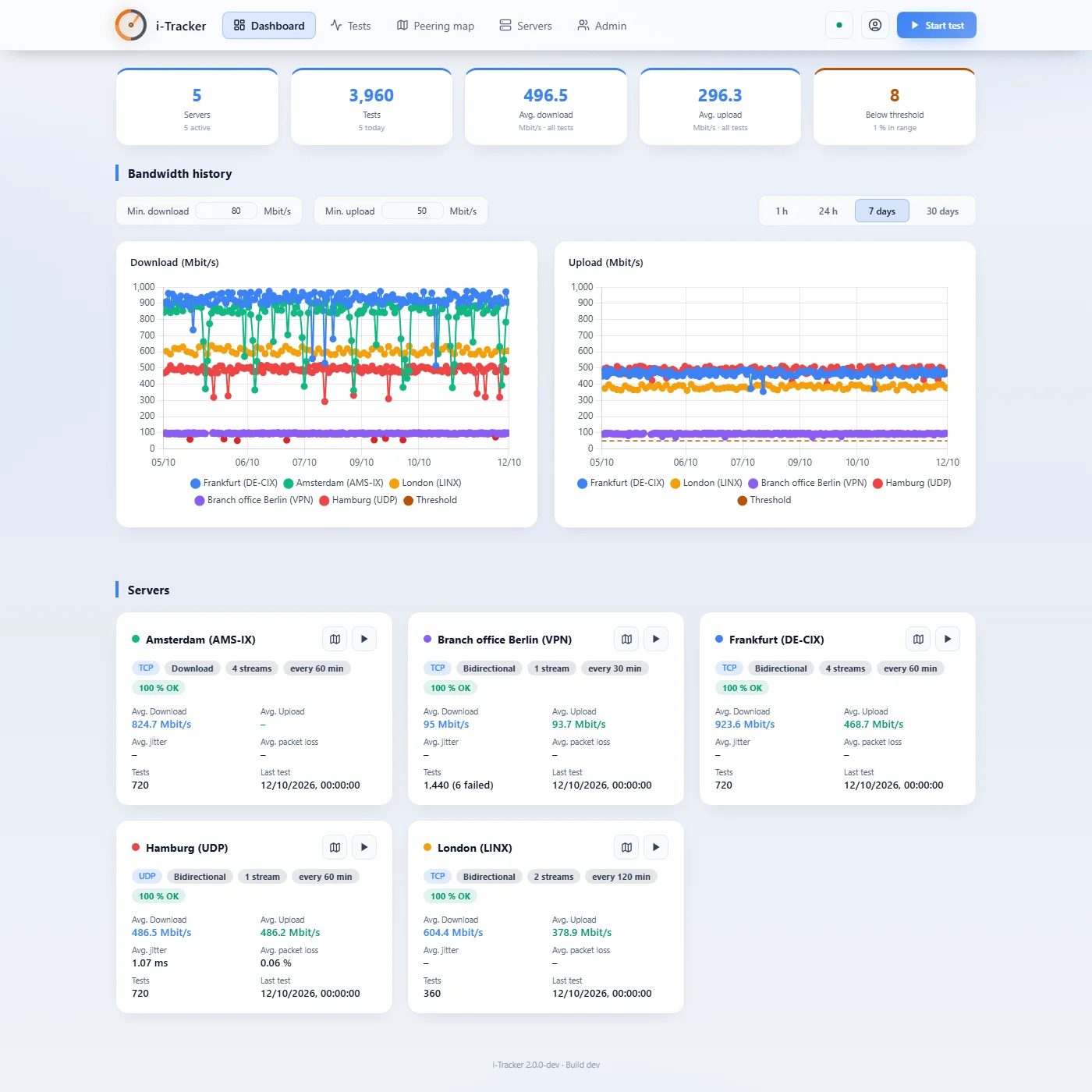
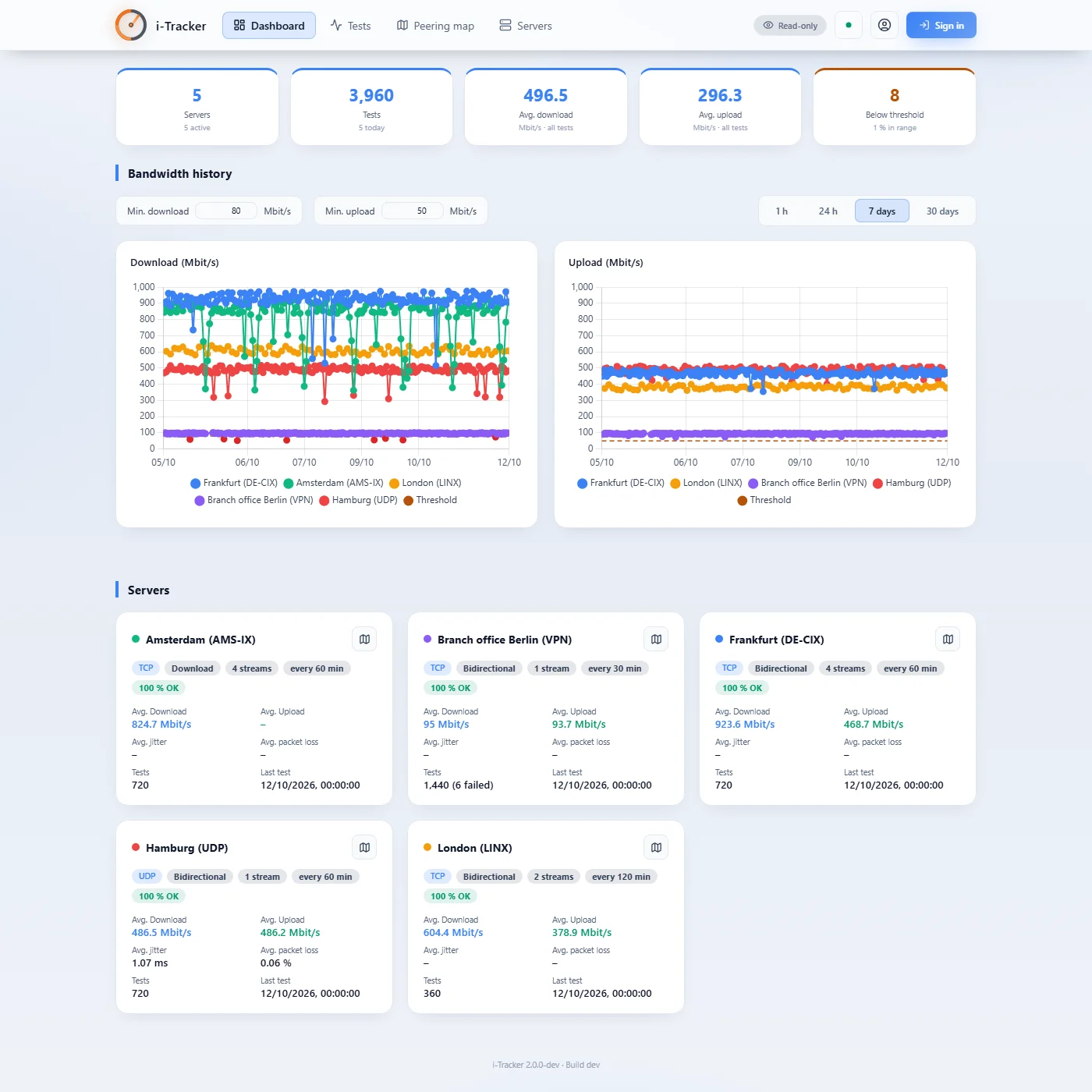
The dashboard sums everything up: how many servers and measurements there are, the averages for download and upload, and the history per server over one hour, one day, one week or one month.
With Min. download and Min. upload you set from which value a measurement counts as too slow. These thresholds only apply in your browser and do not send any notification.
Route tracing and map
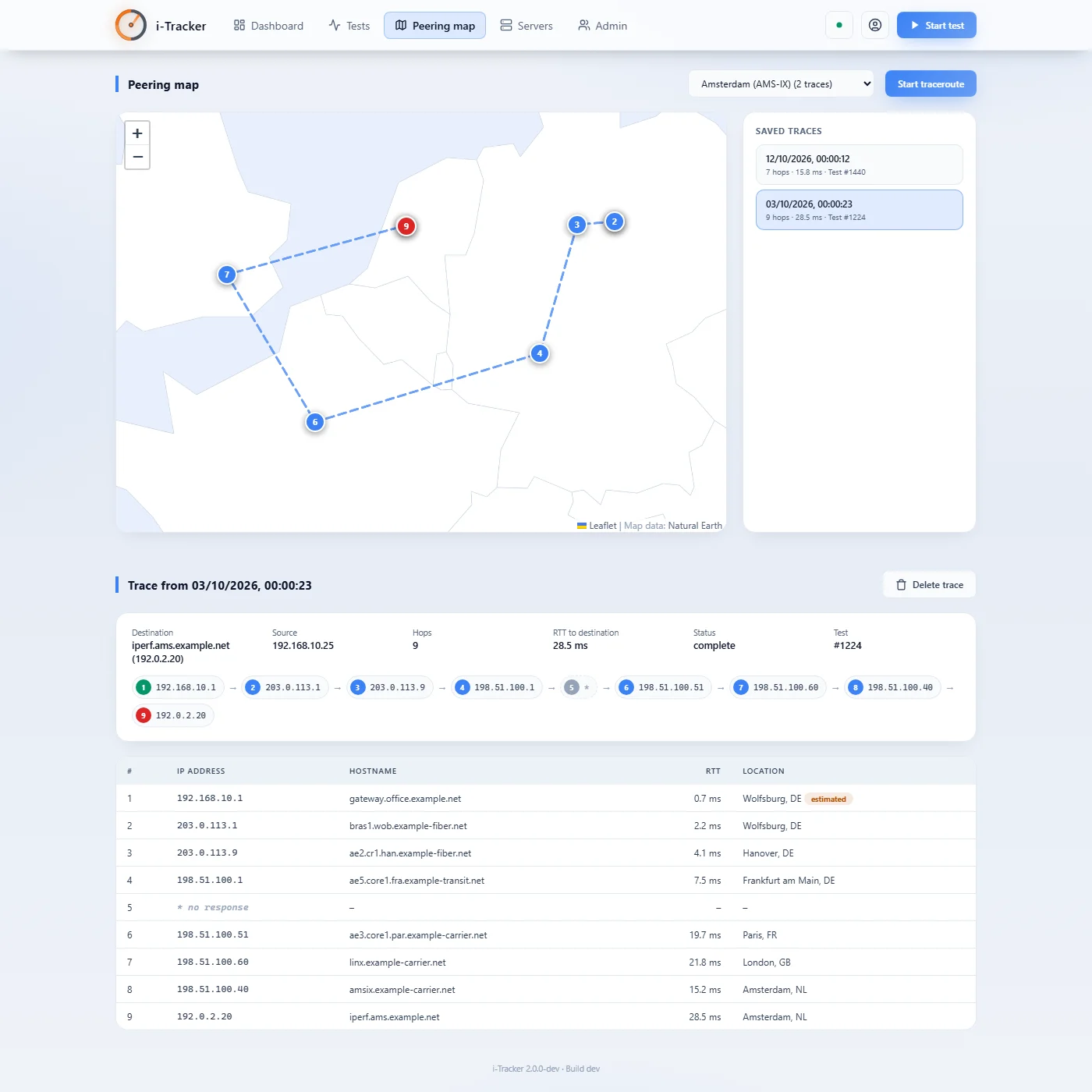
Under Peering map you see which stations your data passes on its way to a test server and roughly where these stations are. That way you spot, for example, detours through another country that make a connection slow.
- Choose a server and click Start traceroute. The stations appear one after the other.
- The table shows address, name, response time and location for each station.
- Locations that cannot be determined are estimated by i-Tracker from the neighbouring stations. They are marked as "estimated".
- You can open saved routes again later.
Route tracing works with IPv4 addresses. Some routers on the internet do not answer; then single stations are missing. That is normal.
Location data
For the map, i-Tracker needs a database that assigns IP addresses to places. It downloads the free database from DB-IP by itself and keeps it up to date once a day.
If you have an account with MaxMind, you can use their database instead. Enter account ID and license key (geoip.maxmind_account_id, geoip.maxmind_license_key). Without internet access, switch off the update with geoip.auto_update: false and put the file in place yourself.
Guest view
Without logging in, anyone who opens the interface sees the results but cannot change anything or start a measurement. "Read only" is shown at the top. This is handy for a screen in the office or for colleagues who only want to have a look.
If nothing should be visible without logging in, set auth.public_read to false.
Users
Under Admin, administrators create and delete further users.
- Administrators may do everything, including managing users, deleting old measurements and installing iperf3.
- Regular users may maintain servers and start measurements.
The Admin area is also where you clean up: delete measurements and routes older than a certain number of days. i-Tracker never deletes anything by itself.
Installing a new version
i-Tracker does not update itself. For a new version, stop the service, replace the program file and start the service again. Your data is kept; the database is adjusted automatically on start if needed.
Windows
.\i-tracker.exe service stop
.\i-tracker.exe service start
Docker
docker compose up -d --buildBackup
Back up the program folder (with Docker, the volume /data). These matter:
config.yaml: your settings- the folder
data: all users, servers, measurements and routes. Safest to copy while the service is stopped.
i-Tracker downloads the location data in the folder geoip again when needed.
Troubleshooting
"iperf3 not found": Install iperf3 via the status dot or by hand, or enter the path in iperf.path. Restart the service after an installation.
Measurements fail: Does iperf3 -s run on the test server, and can its port be reached? Public servers are often busy; then try again later or use another server.
The interface cannot be reached from other computers: Allow port 8000 in the firewall and check that web.listen is 0.0.0.0:8000.
Stations or places are missing on the map: Some routers do not answer traceroute, and not every address can be assigned to a place. That is normal.
Forgot the password: Another administrator can create a new user. If there is none, write to us using the contact form.
Look up
This part is for looking things up when you want to change a particular setting.
Settings
The settings are in the file config.yaml in the program folder. Open it with a text editor and restart the service after a change. Instead, you can also set each value with the environment variable shown below its name in the table.
| Key / environment variable | Default | Meaning |
|---|---|---|
web.listenIPERF3_WEB_LISTEN | 127.0.0.1:8000 | Address at which the interface can be reached. The file created on the first start sets 0.0.0.0:8000, so it is open to all computers in the network. |
storage.pathIPERF3_STORAGE_PATH | data/i-tracker.db | File with all measurements, servers and users. |
auth.secret_keyIPERF3_AUTH_SECRET_KEY | – | Secret key for logins. Created randomly on the first start. Do not share it. Changing it logs out all users. |
auth.session_ttlIPERF3_AUTH_SESSION_TTL | 12h | After how long without activity you have to log in again. |
auth.public_readIPERF3_AUTH_PUBLIC_READ | true | Guest view: show results without logging in. |
scheduler.enabledIPERF3_SCHEDULER_ENABLED | true | Switch regular measurements on or off. |
iperf.pathIPERF3_IPERF_PATH | – | Where iperf3 is. Empty: i-Tracker searches itself. |
iperf.auto_installIPERF3_IPERF_AUTO_INSTALL | false | Install iperf3 on start without asking if it is missing. |
geoip.pathIPERF3_GEOIP_PATH | geoip/city.mmdb | File with the location data. |
geoip.auto_updateIPERF3_GEOIP_AUTO_UPDATE | true | Update the location data daily. |
geoip.maxmind_account_idIPERF3_GEOIP_MAXMIND_ACCOUNT_ID | – | Account ID at MaxMind, only together with the license key. |
geoip.maxmind_license_keyIPERF3_GEOIP_MAXMIND_LICENSE_KEY | – | License key at MaxMind. |
map.tile_urlIPERF3_MAP_TILE_URL | – | Your own map service for a more detailed map, for example https://tile.example.org/{z}/{x}/{y}.png. Empty: the built-in world map. |
map.tile_attributionIPERF3_MAP_TILE_ATTRIBUTION | – | Source notice for your own map service. |
log.levelIPERF3_LOG_LEVEL | info | How detailed the log is: debug, info, warn or error. |
log.formatIPERF3_LOG_FORMAT | text | Layout of the log: text for reading, json for analysis tools. |
Commands
Enter these commands in a console window in the program folder.
| Option / command | Default | Meaning |
|---|---|---|
i-tracker -config | config.yaml | Use a different settings file. |
i-tracker -no-tui | – | Has no effect; only there so calls work as with the other wedigo programs. |
i-tracker -version | – | Show the version number. |
i-tracker service install | – | Set up as a service (with administrator rights). |
i-tracker service uninstall | – | Remove the service again. |
i-tracker service start | – | Start the service. |
i-tracker service stop | – | Stop the service. |
i-tracker service restart | – | Restart the service. |
i-tracker service status | – | Show whether the service is running. |
Interface for your own analyses
You can also fetch all data of the interface as JSON, for example for your own scripts or monitoring systems. Reading addresses can be reached without logging in while the guest view is on. For everything else, log in with POST /api/auth/login and send the value X-CSRF-Token with changing requests.
| Route | Login | Meaning |
|---|---|---|
GET /api/info | public | Name and version. |
GET /health | public | Answers as long as i-Tracker is running. Useful for monitoring systems. |
GET /api/status | read, also guests | State: version, whether iperf3 is available or being installed, whether regular measurements run, and which location data is loaded. |
POST /api/auth/login | public | Log in with user and password. |
POST /api/auth/logout | public | Log out. |
POST /api/auth/logout-all | required | Log out on all devices. |
GET /api/auth/status | public | Whether the guest view is on and whether the initial password still has to be changed. |
GET /api/auth/me | required | Who is logged in. |
POST /api/auth/change-password | required | Change the password. |
POST /api/auth/register | administrator | Create a new user. |
GET /api/auth/users | administrator | All users. |
DELETE /api/auth/users/{user_id} | administrator | Delete a user. |
GET /api/servers | read, also guests | All test servers. |
POST /api/servers | required | Create a test server. |
GET /api/servers/{server_id} | read, also guests | One test server. |
PUT /api/servers/{server_id} | required | Change a test server. |
DELETE /api/servers/{server_id} | required | Delete a test server with all its measurements. |
GET /api/tests | read, also guests | Measurements, filterable by server, status and period. |
POST /api/tests/run | required | Start a measurement. |
GET /api/tests/{test_id} | read, also guests | One measurement with all values. |
DELETE /api/tests/{test_id} | required | Delete a measurement. |
GET /api/tests/{test_id}/live | read, also guests | Interim state of a running measurement. |
GET /api/tests/live/stream | read, also guests | Running measurements as a continuous data stream. |
GET /api/tests/server/{server_id}/latest | read, also guests | Latest measurement of a server. |
GET /api/stats/dashboard | read, also guests | Figures of the dashboard. |
GET /api/stats/servers | read, also guests | Figures of all servers. |
GET /api/stats/servers/{server_id} | read, also guests | Figures of one server. |
POST /api/tests/{test_id}/trace | required | Start a route trace for a measurement. |
GET /api/tests/{test_id}/trace | read, also guests | Route trace of a measurement. |
DELETE /api/tests/{test_id}/trace | required | Delete the route trace of a measurement. |
POST /api/traces | required | Record a route trace to any destination. |
GET /api/traces | read, also guests | Saved route traces. |
GET /api/traces/{trace_id} | read, also guests | One route trace with all stations. |
GET /api/traces/test/{test_id} | read, also guests | Route traces for a measurement. |
DELETE /api/traces/{trace_id} | required | Delete a route trace. |
GET /api/live-trace/stream/{destination} | required | Route trace live, station by station. |
DELETE /api/admin/cleanup/tests | administrator | Delete old measurements, ?days=…. |
DELETE /api/admin/cleanup/traces | administrator | Delete old route traces, ?days=…. |
GET /api/admin/stats/database | administrator | Size and content of the database. |
POST /api/iperf3/install | administrator | Install iperf3. |
GET /api/public-servers | public | List of public test servers. |
GET /api/public-servers/search | public | Search the list of public test servers, ?query=…. |